Pre-configured keybindings, shortcuts, and gestures for AstrOmakase#
Keybindings Overview#
Window Management#
Close Window:
<Super>wQuickly close any active window without stretching forAlt+F4.Maximise Window:
<Super>UpMaximise the current window with a single shortcut.Restore Window:
<Super>DownRestore the current window to its original size if maximised.Toggle Fullscreen:
<Shift>F11Enter or exit fullscreen mode, retaining the title/navigation bar.Minimise Window:
<Super>hQuickly minimise the active window.
Workspace Management#
Switch to Workspaces:Use
<Super>1through<Super>6to jump directly to specific workspaces.Move Windows to Workspaces:Use
<Super><Shift>1through<Super><Shift>6to send the active window to a specific workspace.Navigate Workspaces:Use
<Control><Alt>Leftor<Control><Alt>Rightto switch to the previous or next workspace.Move Windows Between Workspaces:Use
<Control><Shift><Alt>Leftor<Control><Shift><Alt>Rightto move the active window to the adjacent workspace.
Tiling Assistant Keybindings#
Basic Tiling Shortcuts#
Tile Left Half:
<Super>Left,<Super>KP_4Tile Right Half:
<Super>Right,<Super>KP_6Tile Top Half:
<Super>KP_8Tile Bottom Half:
<Super>KP_2Tile Top-Left Quarter:
<Super>KP_7Tile Top-Right Quarter:
<Super>KP_9Tile Bottom-Left Quarter:
<Super>KP_1Tile Bottom-Right Quarter:
<Super>KP_3Maximise Window (Tiling Mode):
<Super>Up,<Super>KP_5
Note
The KP prefix refers to the keypad (numeric pad) keys. If your keyboard lacks a numeric keypad, these keybindings may not work unless you remap them.
Advanced Tiling Shortcuts#
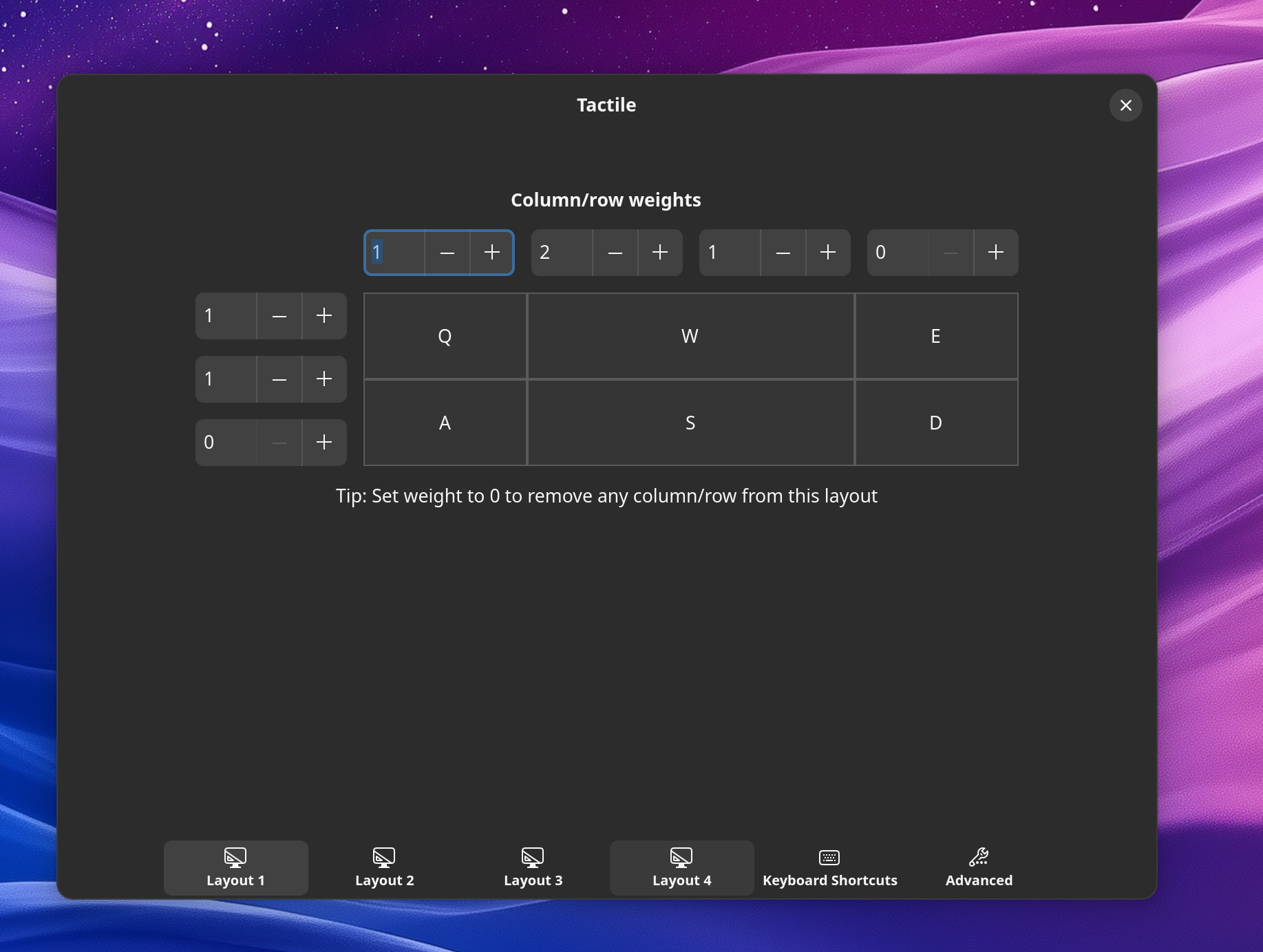
Press <Super>t to activate Tiling Assistant’s interactive tiling mode. This mode allows you to divide the screen into non-homogeneous portions. By default, the screen is split into three columns, where the central column is as wide as the two lateral ones combined. Use combinations of Q, W, E, A, S, D, Z, X, C to place the window in complex layouts. Examples include:
<Super>t+WW: Centre-top area<Super>t+QW: Top-left and centre area<Super>t+QA: Left column
The keys used for tiling (default: Q, W, E, A, S, D, Z, X, C) can be expanded or modified based on user preferences in Tiling Assistant’s settings.
This can ce accessed by pressing <Super>Shift>t.
Using Ulauncher#
Ulauncher is your go-to tool for quick application launching and actions. Press <Super>Space to bring it up and start typing:
Application Names: Launch any installed application by typing its name.
File Search: Access files by their names if indexed.
Custom Extensions: Use Ulauncher’s plugins to add functionality like calculator operations, dictionary searches, or script executions.
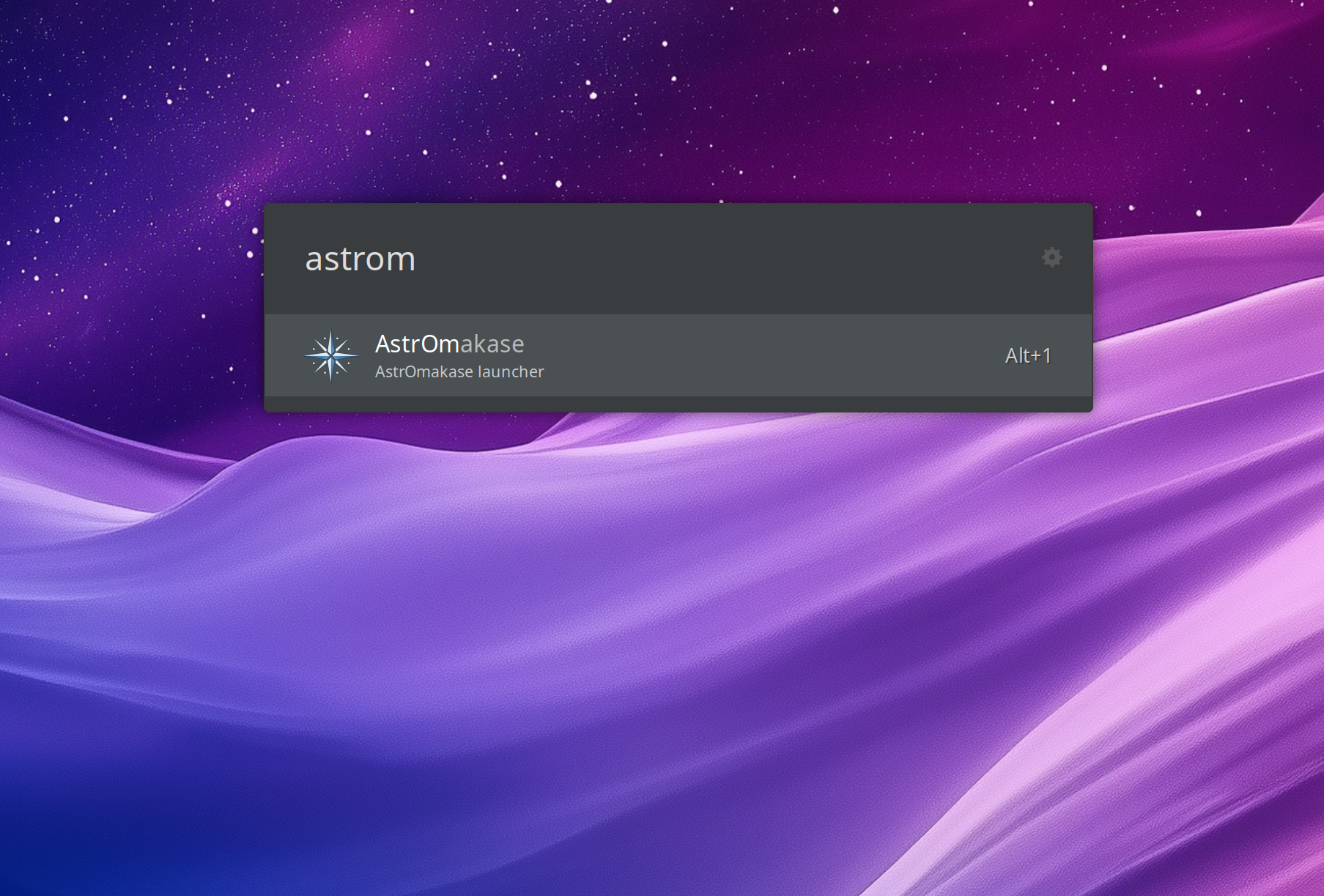
Configuration files for Ulauncher are pre-set but can be modified in $HOME/.config/ulauncher/settings.json.
Workspace Gestures#
The system uses six fixed workspaces. You can navigate and manage them using:
Keybindings:
<Super>1to<Super>6to switch between workspaces.Move Windows:
<Super><Shift>1to<Super><Shift>6to move a window to a specific workspace.Touchpad Gestures: Swipe left or right with three fingers to navigate between adjacent workspaces. Swipe up with three fingers to open the Activities Overview (equivalent to the Home/Overview key).